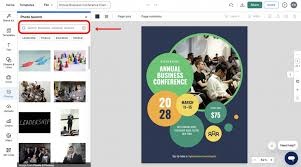
A structured tutorial for business owners who need professional posters quickly without formal design training.
Introduction
Posters remain one of the most practical offline marketing tools for small and mid-sized businesses. Whether promoting a sale, announcing an event, or communicating in-store information, a well-designed poster helps deliver a clear message in environments where attention is brief.
For business owners without design experience, the difficulty is rarely the idea itself. The friction usually comes from layout structure, typography choices, print sizing, and export settings. Poster maker template tools reduce these barriers by providing pre-built layouts, drag-and-drop editing, and print-ready exports.
Within this category, tools differ in template organization, brand asset management, export controls, and workflow integrations. Platforms such as Adobe Express custom print posters offer browser-based templates with built-in sizing presets, which can simplify the process for non-designers. Other tools may support asset preparation, project management, file handling, or distribution.
The workflow below focuses on speed, clarity, and structural decisions that reduce rework.
Step-by-Step How-To Guide for Using Poster Maker Templates Tools
Step 1: Start With a Structured Template
Goal
Reduce design guesswork by beginning with a layout built for your purpose.
How to do it
- Open a poster maker platform such as Adobe Express custom print posters.
- Select the correct print size (e.g., 11×17 inches, A3, or custom dimensions).
- Filter templates by category (sale, event, restaurant, workshop).
- Choose a layout where headline, image area, and detail sections are already structured.
- Replace placeholder text with your working message before styling.
What to watch for
- Templates that prioritize decoration over readability.
- Designs with more than two font styles.
- Incorrect size presets for your intended print format.
- Text placed too close to the page edge.
Tool notes
Adobe Express provides preset print dimensions and export controls. For organizing your promotional timeline and coordinating print deadlines, a project management tool such as Trello can help track draft versions and approval stages without affecting the design workflow itself.
Step 2: Clarify the Core Message Before Styling
Goal
Ensure the poster communicates one primary idea within seconds.
How to do it
- Write a single headline limited to 8–12 words.
- Add essential supporting details (date, offer, location).
- Define one action you want the reader to take.
- Remove secondary messaging that competes with the main point.
- Structure the content hierarchy: Headline → Key Details → Action.
What to watch for
- Multiple offers on one poster.
- Long paragraphs.
- Small text for essential information.
- Missing logistical details.
Tool notes
Adobe Express allows quick text box resizing and alignment adjustments. To refine your headline wording and keep it concise, a writing assistant such as Grammarly can help tighten phrasing before final placement.
Step 3: Add High-Quality Visual Elements
Goal
Use visuals that reinforce the message without reducing clarity.
How to do it
- Upload a high-resolution image (ideally 1500–3000 pixels on the longest side).
- Replace the template image placeholder.
- Adjust brightness or contrast if text overlays the image.
- Crop to emphasize the focal point.
- Use solid color backgrounds if no suitable photo is available.
What to watch for
- Pixelated images when scaled up.
- Overly busy backgrounds.
- Mismatched brand colors.
- Stock imagery that feels generic or unrelated.
Tool notes
Adobe Express includes built-in editing tools for image adjustments. If you need to resize or compress images before uploading, a utility like TinyPNG can reduce file size while preserving quality, especially when exporting digital versions of the poster.
Step 4: Apply Brand Elements Consistently
Goal
Ensure the poster aligns with your business identity.
How to do it
- Insert your logo in a consistent corner or footer area.
- Use your brand colors for headlines or accent blocks.
- Limit typography to one headline font and one body font.
- Align all elements using grid or alignment guides.
- Maintain equal spacing between sections.
What to watch for
- Distorted logos.
- Excessive font variety.
- Inconsistent margins.
- Decorative fonts that reduce legibility.
Tool notes
Adobe Express allows reusable brand kits for consistent colors and logos. To manage and store official logo files and approved brand assets, a cloud storage tool such as Google Drive can centralize access for team members.
Step 5: Prepare the File for Print
Goal
Export a technically correct, print-ready file.
How to do it
- Set export resolution to 300 DPI for print.
- Confirm final document size matches your print format.
- Extend background elements slightly for bleed if required.
- Keep important text inside safe margins (at least 0.25 inches from the edge).
- Export as a high-quality PDF.
What to watch for
- RGB color differences in print.
- Missing bleed areas.
- Cropped edges after trimming.
- Low-resolution JPG exports sent to printers.
Tool notes
Adobe Express supports high-resolution PDF export suitable for professional printing. If sending files to a print shop, a file-sharing platform such as WeTransfer can simplify large file delivery without compressing quality.
Step 6: Distribute and Track Performance
Goal
Maximize the poster’s impact across physical and digital channels.
How to do it
- Save a resized version for social media.
- Include a QR code linking to a specific landing page.
- Print appropriate quantities based on foot traffic.
- Place posters in visible, relevant locations.
- Track performance with a unique code or URL.
What to watch for
- Inconsistent messaging between digital and print versions.
- QR codes too small to scan.
- No tracking mechanism to measure results.
- Placement in low-traffic areas.
Tool notes
Adobe Express allows resizing designs for digital formats. For tracking QR code engagement and campaign performance, a link tracking tool such as Bitly can provide measurable insights without changing the design workflow.
Common Workflow Variations
Photo-Driven Retail Promotion
Use a large product image with minimal text. Emphasize price or limited-time details clearly.
Informational Event Poster
Prioritize date, time, and venue details in structured blocks. Avoid decorative clutter.
Recurring Monthly Promotion
Duplicate and update an existing template to maintain consistency and reduce redesign time.
In-House Printer Use
Stick to standard paper sizes (8.5×11 inches) and reduce heavy color backgrounds to manage ink usage.
Checklists
Before You Start Checklist
- ☐ Final headline drafted
- ☐ Correct print dimensions selected
- ☐ High-resolution images prepared
- ☐ Logo file ready in PNG or SVG
- ☐ Brand colors identified
- ☐ Print method confirmed
- ☐ Distribution timeline set
- ☐ Tracking method defined
Pre-Export Checklist
- ☐ Resolution set to 300 DPI
- ☐ Final size verified
- ☐ Bleed area applied if needed
- ☐ Text inside safe margins
- ☐ Spelling and dates reviewed
- ☐ QR code tested
- ☐ Exported as high-quality PDF
- ☐ File version labeled clearly
Common Issues and Fixes
Blurry Print Output
Replace low-resolution images and confirm 300 DPI export settings.
Text Too Close to Edge
Increase margins and reposition text within safe areas.
Color Appears Duller in Print
Avoid neon tones and slightly increase contrast before exporting.
Overcrowded Layout
Remove secondary details and increase white space.
QR Code Not Working
Increase size and verify scan functionality before printing.
How To Use Poster Maker Template Tools: FAQs
Should I use a template or start from scratch?
Templates reduce layout errors and speed up the process for non-designers.
How much text is appropriate for a poster?
If the main message cannot be read within 3–5 seconds, simplify it.
Should I design for print or digital first?
If printing is primary, design at print size first and then resize for digital formats.
Is professional printing necessary?
For large formats or high-volume runs, professional printing ensures better color accuracy and durability.
How do I maintain consistency across multiple posters?
Use a saved template and standardized brand elements to reduce variation.